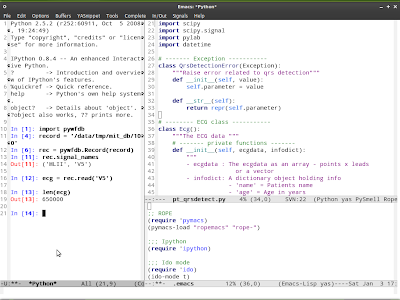
It's almost 5 months since I started using emacs on a regular basis. After beginning to use it as a platform to learn lisp (with SLIME), now I use emacs for coding python and bash, writing manuscripts (with markdown), doing statistics with R (using
ESS), file and directory management and sometimes even to play chess on
FICS.
Emacs, in my opinion is something anyone should give a whirl. It is open source, free and easily installable on any operating system. It is an absolutely amazing piece of software - give it a shot and if after a couple of months you decide to give up, atleast you have got a taste of what it is about. Here I will attempt to list a few things that will ease the introduction to emacs.
Note: Many of these instructions may be specific for Gnu-emacs on Linux. They may vary if you are using another emacs variant or another platform.
1. Start off with a good looking emacs
An oft-repeated complaint is that emacs looks bad, bad enough to deter a newcomer sometimes. But then, it doesn't have to ...
Use the latest emacs snapshot that allows use of your preferred fonts with nice antialiasing. In Ubuntu this means
sudo aptitude install emacs-snapshot-gtk emacs-goodies-el
Now you can use any font you prefer by modifying the Xresources file as detailed
here.
2. Disable the splash screen, scrollbar and toolbar. Add to your .emacs -
(setq inhibit-startup-message t)
(tool-bar-mode -1)
(scroll-bar-mode -1)It may seem surprising to consider disabling the scrollbar and toolbar. Maybe a case can be made for having these on while you wean yourself from the mouse, but I believe that there are greater dividends to doing this early and getting used to mouseless editing. I have preferred leaving the menu-bar on although I dont use the menu items, just because it sometimes allows me to easily refer to the shortcuts available, but again, it is worth considering disabling this too.
3. Syntax highlighting
Install color themes. In ubuntu, this is done easily by installing emacs-goodies-el. Now, add this in your emacs to have 'font-lock' on for syntax highlighting.
(global-font-lock-mode t)After M-x, typing color-theme- and hitting tab will shows the completions available. Try out the different color-themes to decide what you want to use. To enable it automatically, add a line like this -
(require 'color-theme)
(setq color-theme-is-global t)
(color-theme-scintilla)4. Enable line numbers
If you feel lost without them,
(require 'linum)
(global-linum-mode)
5. If you
like to 'see' a selected region, you have to enable transient-mark-mode -
(setq-default transient-mark-mode t)
6. And if you have trouble copy-pasting between other windows and emacs, this worked for me -
(setq x-select-enable-clipboard t)
With these basic things out of the way, you have a decent emacs set up to start with. There are multiple options for further customization, but I will leave them for you to experiment with. Packages to definitely try out are
ido-mode,
pabbrev,
bookmarks and
yasnippet.

Loading image
Click anywhere to cancel
![]()
![]()


